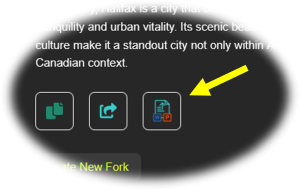
You can generate a Word (.docx) or PowerPoint (.pptx) document from any A.I. response.
Select the Generate Document icon below an A.I. message in a Chat to get started.
Using a Custom Template
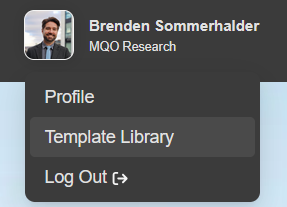
You can manage all of your templates from your Template Library. Hover over your profile on the upper left of your screen to access it any time.
To use a custom template (for example, to use your own branding, layouts, and style themes), you must first download the provided base templates as a starting point.For the document generation process to work correctly with a custom template, you must make your style changes to a base template.
Your Template Library is pre-loaded with base DOCX and PPTX templates. On the upper right of your screen you will see buttons allowing you to download these base templates:
Editing the Word (docx) Template
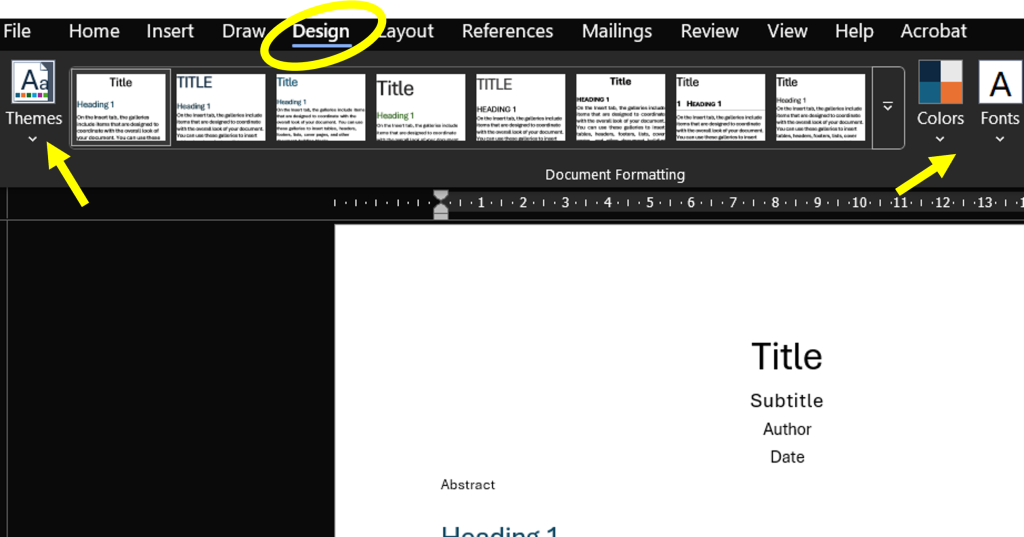
Once you have downloaded the Word Base Template, you can apply your own custom “Theme” (if you have one) or you can set your own colours and fonts. These settings are under the Design tab in Word. You can also add elements into the Header or Footer of the document here (like your company logo or other design elements).
Do not change any of the actual content within this template Worddocument. The A.I. uses these as a reference when generating your documents.
When you are finished updating the template with your styling, save it as a new document (choose a meaningful file name, like “[my company] Custom Word Template”). You can then upload your custom template to your Template Library by selecting the “+ New Template” button on the upper right of your screen.
Editing the PowerPoint (pptx) Template
Once you have downloaded the PowerPoint Base Template, you can apply your own custom “Theme” (if you have one) or you can set your own colours and fonts. These settings are also under the Design tab in PowerPoint, or you can change them in the Slide Master (more on that below).
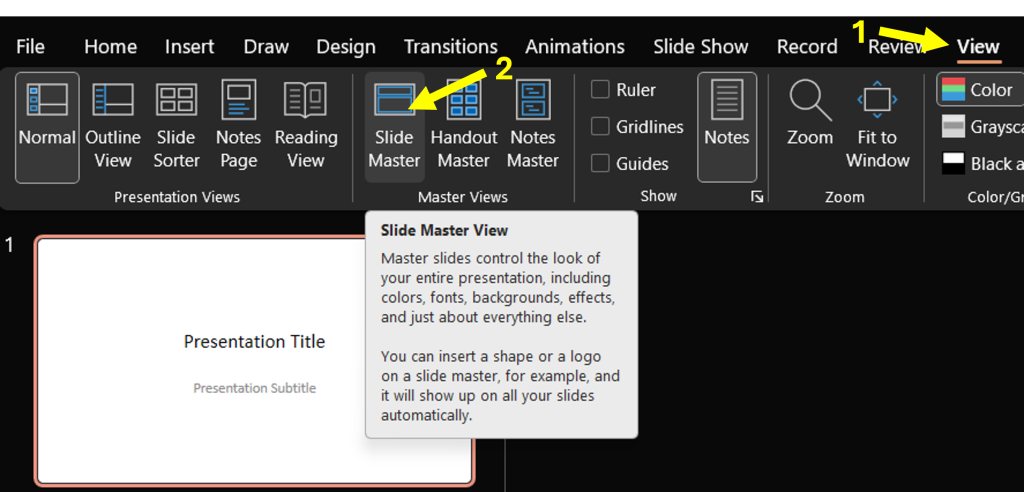
You can also change the slide layouts.(important!) To do so:
You must make layout changes to the Base PowerPoint Template, using PowerPoint’s Slide Master.
All edits you make in Slide Master must be applied to existing slide types within the Base PowerPoint Template.
You must not add any new slide types within Slide Master.
You must not rename any slide types within Slide Master.
You may delete any slide types from the template within Slide Master that you do not want the A.I. to use.
Click here to view Microsoft’s helper about the PowerPoint Slide Master.
Do not change any of the actual content within the template PowerPointdocument. The A.I. uses these as a reference when generating your documents.
When you are finished updating the template with your styling, save it as a new document (choose a meaningful file name, like “[my company] Custom PowerPoint Template”). You can then upload your custom template to your Template Library by selecting the “+ New Template” button on the upper right of your screen.
Sharing a Custom Template
If you have uploaded any custom Word or PowerPoint templates, you can share them with other users in your Organization so they can use them too!
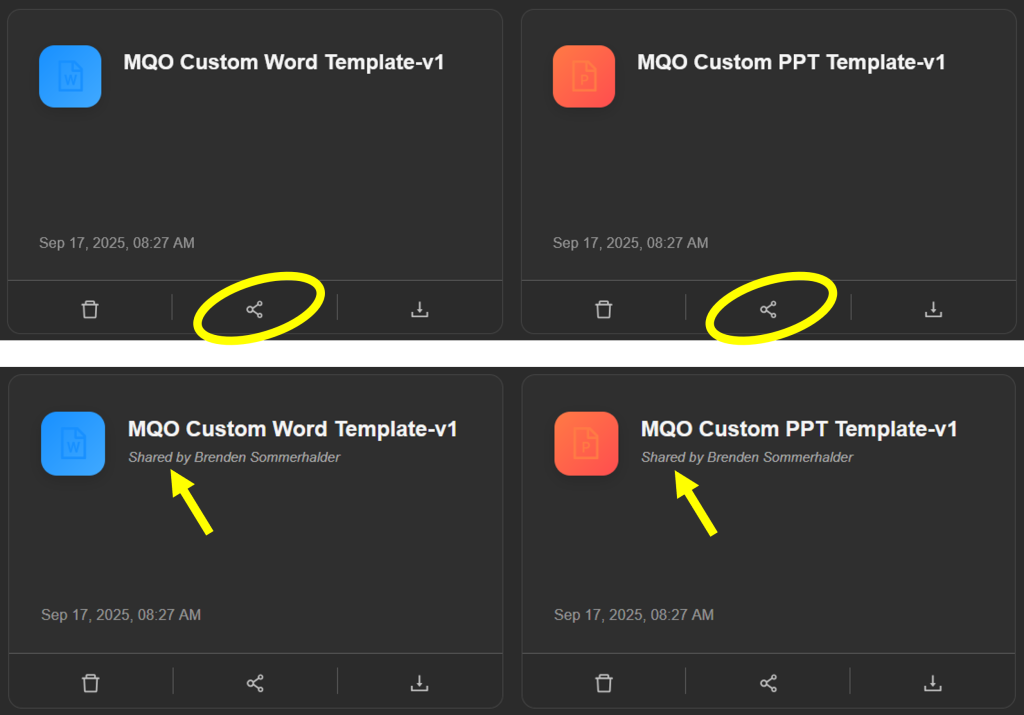
To share a template, navigate to your Template Library and select the Share icon below the template you would like to share. From here, you can share the template with another user, your whole Team (if your Organization has any Teams set up), or with everyone in your Organization.
Shared templates will show in a user’s own Template Library.